How to Turn a Recording into Subtitles (SRT, VTT) for Free
Four free ways to turn speech into a subtitle file, with the exact commands for whisper.cpp and ffmpeg, what SRT and VTT files look like, and the line length and timing rules that make subtitles readable.
 Roman Shalabanov
Published
11 min read
To turn a recording into subtitles for free, run it through a speech recognition model that outputs timed text, then save the result as an SRT or VTT file. The easiest way is Subtitle Edit, a free open-source editor for Windows, macOS and Linux: it runs OpenAI's Whisper model on your own computer and saves the subtitles in either format. If you prefer a terminal, whisper.cpp does the same in one command. If your video is going to YouTube anyway, YouTube's automatic captions cost nothing and you can download them.
Whichever tool you use, plan ten minutes to proofread. Speech recognition gets most words right but trips on names, numbers and jargon, and the raw output often has lines that are too long to read in time. This guide shows each free route step by step, the commands as their current documentation gives them (checked November 19, 2026), and the timing rules that make the file publishable. If you need a plain transcript rather than subtitles, our guide to free transcription software compares the offline apps in more detail.
What SRT and VTT files look like
Both are plain text files made of cues: a start time, an end time and one or two lines of text. Here are two short files that start with the same subtitle.
1
00:00:01,000 --> 00:00:03,500
Welcome to the demo.
Today we turn audio into subtitles.

2
00:00:04,000 --> 00:00:06,800
SRT uses a comma before milliseconds.WEBVTT
00:00:01.000 --> 00:00:03.500
Welcome to the demo.
Today we turn audio into subtitles.
00:00:04.000 --> 00:00:06.800
VTT uses a full stop and starts with WEBVTT.SRT vs VTT
| SRT (SubRip) | VTT (WebVTT) | |
|---|---|---|
| First line | Cue number | WEBVTT |
| Time format | 00:00:01,000 |
00:00:01.000 |
| Cue numbers | Required | Optional |
| Formal specification | ✗ (a de facto format) | ✓ (W3C) |
| Styling and position | Basic HTML-style tags, not standardized | Defined in the spec |
| Plays in an HTML5 video player | No | Yes |
| Accepted by YouTube | Yes | Yes |
The Library of Congress describes SRT as "a very simple text format, but not well standardized" in its format description, and notes that WebVTT was based on it. WebVTT has a W3C specification and is the format browsers read through the HTML <track> element. YouTube's list of supported files accepts both, says an SRT file "must be in plain UTF-8", and reads only bold, italic and underline styling from VTT.
Rule of thumb: make SRT for video platforms and editors, VTT for your own website. Most tools below export both, and Subtitle Edit or ffmpeg converts one into the other.
Pick a free route
Free ways to make a subtitle file, checked November 19, 2026
| Route | Where the audio is processed | Output | Limits | Best for |
|---|---|---|---|---|
| Subtitle Edit with Whisper | Your computer | SRT, VTT and many more | Model download on first use | Most people, with editing built in |
| Buzz | Your computer | SRT, VTT, TXT | Basic editing | A simple app for single files |
| whisper.cpp | Your computer | SRT, VTT, TXT, JSON | Command line | Batches and scripts |
| OpenAI Whisper (Python) | Your computer | SRT, VTT, TXT, JSON | Python and ffmpeg needed | Two-line subtitles by width |
| YouTube automatic captions | Google's servers | Downloadable caption file | Video must be uploaded | Videos going to YouTube anyway |
| Clipchamp free plan | Microsoft's cloud | SRT | One language per video | Editing and captioning in one place |
| Kapwing free plan | Kapwing's servers | Captions in the editor | 10 minutes of auto-subtitling, watermark | A quick one-off test |
The first four keep the recording on your machine, which matters for interviews, client calls and anything under a confidentiality agreement. The last three upload your file, which is usually fine for content you are about to publish.
Make subtitles on your computer with Subtitle Edit
Subtitle Edit is a free, open-source subtitle editor. Version 5 runs on Windows, macOS and Linux, and its speech-to-text page lists a dozen engines. Whisper CPP is described as a "Local CPU engine"; a few others, such as Google Cloud Speech-to-Text and OpenRouter, are online services you can simply skip.
- Install Subtitle Edit from its official page and open your video in it.
- Choose Video → Speech to text….
- Pick an engine, such as Whisper CPP, and a model. Start with a small model; larger ones are more accurate but slower. Engines and models download automatically the first time.
- Choose the spoken language, or Auto detect, and click Transcribe.
- Read through the subtitles with the video playing, fix names and numbers, then save the file and choose SubRip (.srt) or WebVTT (.vtt) as the format.
Two features save time on longer projects. Batch mode transcribes several videos and saves an .srt file next to each one. And the rules profiles in Settings let you switch between presets such as Netflix and broadcast, which store limits for line length, characters per second and duration.
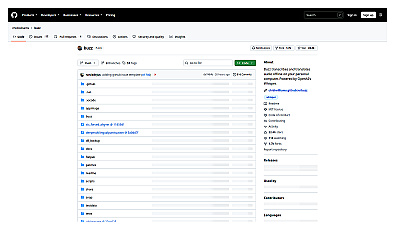
If you only need a file and no editing, Buzz is a lighter Whisper app for Windows, macOS and Linux that exports TXT, SRT and VTT. Both apps build on Whisper, OpenAI's open-source speech model.

Make subtitles from the command line
whisper.cpp
whisper.cpp is a C/C++ port of Whisper that runs on ordinary CPUs and Apple silicon, with optional backends for NVIDIA, AMD and other GPUs. The README gives this setup. You need Git, CMake and a C++ compiler.
git clone https://github.com/ggml-org/whisper.cpp.git
cd whisper.cpp
cmake -B build
cmake --build build -j --config Release
sh ./models/download-ggml-model.sh base.en
On Windows, download the model with .\models\download-ggml-model.cmd base.en instead. The README says whisper-cli works with 16-bit WAV files; its CLI help also lists MP3, FLAC and OGG, but not video. So extract the audio from your video with ffmpeg first, then transcribe:
ffmpeg -i my-video.mp4 -ar 16000 -ac 1 -c:a pcm_s16le my-video.wav
./build/bin/whisper-cli -m models/ggml-base.en.bin -f my-video.wav -osrt -ovtt -ml 42 -sow -of my-video
The flags come from the CLI help. -osrt and -ovtt write my-video.srt and my-video.vtt, and -of sets the file name. -ml 42 caps each segment at 42 characters, and -sow splits on whole words rather than word pieces. The result is one line per subtitle, which reads well on phones.
For other languages, download a multilingual model such as large-v3-turbo with the same script, point -m at models/ggml-large-v3-turbo.bin, and add -l with a language code, for example -l de, or -l auto to detect it. The CLI help warns that on music or long silences the model can invent text, and suggests pinning the language and using voice activity detection (--vad with a VAD model) to skip non-speech parts.
OpenAI Whisper (Python)
The original Whisper package reads video files directly through ffmpeg and can wrap text into two lines:
pip install -U openai-whisper
whisper my-video.mp4 --model turbo --language English --output_format srt --word_timestamps True --max_line_width 42 --max_line_count 2
--max_line_width and --max_line_count only work together with --word_timestamps True, according to the command's help text. The first run downloads the model; after that, everything runs offline.
Use YouTube's automatic captions
If the video will live on YouTube, let YouTube do the recognition. Its automatic captions cover 67 languages; on a video with several audio tracks, they are made in the default language only. They are published on the video on their own once they are ready. A workaround that YouTube does not document: upload a video as Unlisted only to get its automatic captions, then download them for use elsewhere. Captions are not guaranteed, and the file still goes to Google's servers.
- Upload the video and set its language correctly in the details.
- Wait. YouTube says automatic captions "may not be ready at the time that you upload a video" and that processing time depends on the audio.
- In YouTube Studio, open Subtitles, click the video, and review the automatic track. To correct it, choose Duplicate and edit next to it, fix the text, and publish your copy.
- To download, click Edit next to the language, then Options → Download subtitles (YouTube Help).
YouTube lists the cases where automatic captions may not appear: a video that is too long, poor sound, a long silence at the start, or overlapping speakers or languages. Your video is processed on Google's servers, so keep confidential recordings off this route. For more on captions and dubbing as part of a channel's workflow, see our guide to AI tools for YouTubers.
Use a video editor with automatic captions
If you are editing the video anyway, an editor with built-in captions saves a step.
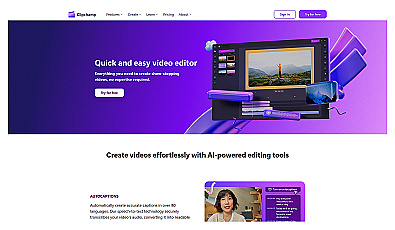
- Clipchamp, Microsoft's browser and Windows editor, includes AI subtitles on its free plan, along with watermark-free 1080p exports (pricing). Turn on autocaptions in the captions tab, pick the language, fix the transcript, then use download captions to save an .srt file (Microsoft Support). Microsoft says it processes the audio with Azure Cognitive Services, and only one language is allowed per video.
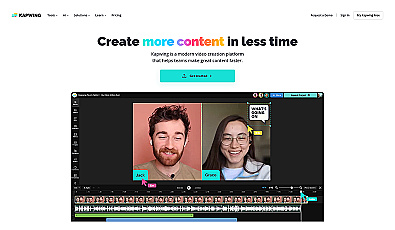
- Kapwing's free plan includes 10 credits, enough for up to 10 minutes of auto-subtitling, with a watermark on exports, videos up to 4 minutes and 720p quality. Its Pro plan raises auto-subtitling to 1,000 minutes a month (pricing).
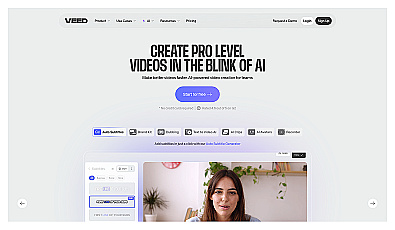
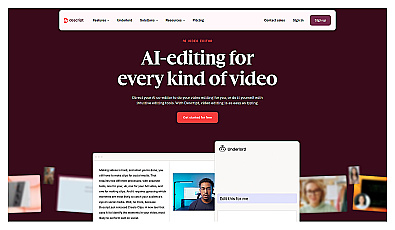
- VEED and Descript also caption automatically; check their free plans for watermarks and export limits before you rely on them.

Fix line length and timing before you publish
Raw speech-to-text output is a transcript cut into pieces, not finished subtitles. A published style guide gives you numbers to aim for. Netflix's English (USA) Timed Text Style Guide and its general requirements set these limits:
42
characters per line
2
lines per subtitle, at most
20
characters per second for adult programmes (17 for children's)
5/6 s to 7 s
shortest and longest time on screen
Source: Netflix Timed Text Style Guide, checked November 19, 2026
Netflix also says text "should usually be kept to one line" unless it exceeds the limit. When you do split, break after punctuation or before a conjunction or preposition, and never between an article and its noun, or a first name and a last name.
A short checklist for any free tool:
- Names and numbers. Search the file for every product name, person and figure, and check them against the audio.
- Reading speed. If a subtitle shows more than about 20 characters per second, shorten the wording or let it run into a pause. Subtitle Edit's rules profiles hold a maximum characters-per-second value for this check.
- Silence and music. Delete any text that appears over music or silence; Whisper models sometimes invent lines there.
- Encoding. Save as UTF-8, which YouTube requires for SRT, so accented letters survive the upload.
Add subtitles to your video: burned in or a separate file
You can ship subtitles in two ways, and the choice decides who can turn them off.
Separate subtitle file vs burned-in subtitles
| Separate file (soft subtitles) | Burned in (open captions) | |
|---|---|---|
| Viewer can turn them off | Yes | No |
| Several languages for one video | Yes | No |
| Fix a typo without a new export | Yes | No |
| Text readable by players and search | Yes | No |
| Shows in feeds that ignore subtitle files | No | Yes |
| Works on platforms without subtitle upload | No | Yes |
For YouTube, upload the SRT or VTT file to the video in Studio. For short vertical clips, burn the text in. For files you host or send yourself, ffmpeg does either job in one command. The first command draws the subtitles onto the picture with the subtitles filter, which needs an ffmpeg build with libass; ffmpeg -filters lists it if yours has it. The second adds the SRT as a switchable track to an MP4 file, which stores text subtitles as mov_text.
# Burn subtitles into the picture
ffmpeg -i my-video.mp4 -vf subtitles=my-video.srt -c:a copy my-video-subtitled.mp4

# Add a subtitle track that viewers can switch on and off
ffmpeg -i my-video.mp4 -i my-video.srt -c copy -c:s mov_text -metadata:s:s:0 language=eng my-video-cc.mp4
The second command copies the video and audio without re-encoding, so it finishes in seconds. Burning in re-encodes the video, so it takes about as long as a normal export.
For more captioning and transcription tools, browse the Video category and the Audio category, or let the finder filter them by budget.
AI Tool Finder Answer three questions and get matching tools from our directory.FAQ
What is the best free subtitle generator?
For most people, Subtitle Edit: it is free and open source, runs Whisper on your own computer, and lets you fix the text and timing before saving SRT or VTT. If your video is going to YouTube, its automatic captions are free too.
How do I convert SRT to VTT?
Open the file in Subtitle Edit and save it as WebVTT, or run ffmpeg -i subtitles.srt subtitles.vtt. The text stays the same; the file gains a WEBVTT header and full stops before the milliseconds.
Can I make subtitles without uploading my video?
Yes. Subtitle Edit, Buzz, whisper.cpp and OpenAI's Whisper package all run on your computer after a one-time model download. YouTube, Clipchamp and Kapwing process the file on their servers.
How many characters should a subtitle line have?
Netflix's English style guide allows 42 characters per line and two lines at most, with up to 20 characters per second for adult programmes. Shorter lines read better on phones.
Should I burn subtitles in or upload a file?
Upload a file where the platform supports it, such as YouTube, so viewers can switch subtitles off and you can fix mistakes later. Burn them in for social clips that autoplay without sound.