How to Run an LLM Locally: Ollama, LM Studio and the Hardware You Need
A practical guide to running a language model on your own computer: which app to install, which model fits your hardware, the exact commands, and what local does and does not protect.
 Roman Shalabanov
Published
10 min read
Roman Shalabanov
Published
10 min read
To run an LLM locally, install one of three free apps: Ollama, LM Studio or llama.cpp. Then download an open-weight model small enough for your graphics card or Mac and start a chat. With Ollama you install the app, then type one command: ollama run gemma4.
The hardware decides which models you can use. A model must fit in your GPU memory (VRAM) or, on an Apple Silicon Mac, in the share of unified memory the GPU may use. An 8B model at 4-bit quantization needs about 7 GB, a 32B model about 22 GB. The table below and our LLM VRAM Calculator tell you what fits before you download several gigabytes.
What hardware you need to run an LLM
Memory matters more than raw speed. The estimates below are for an 8,192-token context at Q4 (the Q4_K_M format), from the same formula as our VRAM tables from 7B to 70B.
| Your hardware | Memory for the model | What runs comfortably |
|---|---|---|
| 8 GB card (RTX 4060) | 8 GB | 7B–8B at Q4 |
| 12 GB card (RTX 3060, 4070) | 12 GB | 8B at Q8, 14B at Q4 (tight) |
| 16 GB card (RTX 4060 Ti 16 GB, 4080, 5080) | 16 GB | 14B at Q6 |
| 24 GB card (RTX 3090, 4090) | 24 GB | 14B at Q8, 32B at Q4 (tight) |
| 32 GB card (RTX 5090) | 32 GB | 32B at Q5 or Q6 |
| Mac with 16 GB | about 10.7 GB | 7B–8B up to Q6 |
| Mac with 32 GB | about 21 GB | 24B at Q4, 14B at Q8 |
| Mac with 64 GB | about 48 GB | 32B at Q8, 70B at Q4 (tight) |
Without a supported GPU, the runners fall back to the CPU and system RAM. Small models of a few billion parameters are the practical choice that way; larger ones work, but slowly. Plan disk space too: a model file is about the size of its weights, so roughly 5 GB for an 8B model at Q4.
Ollama, LM Studio or llama.cpp: which one to pick
All three run the same kind of quantized model files and run on macOS, Windows and Linux. The difference is how you work with them.
Local LLM runners compared (October 2026)
| Ollama | LM Studio | llama.cpp | |
|---|---|---|---|
| Interface | Terminal, plus a desktop app | Desktop app, plus the lms CLI |
Terminal and a built-in web UI |
| Model source | Ollama library, or GGUF files from Hugging Face | Hugging Face search in the app | Hugging Face (-hf) or local GGUF files |
| Local API | OpenAI-compatible, port 11434 | OpenAI-compatible, port 1234 in its docs | OpenAI-compatible, port 9931 by default |
| Apple MLX models | ✓ (MLX tags) | Yes | No |
| Source code | Open source (MIT) | Closed-source app, free for home and work | Open source (MIT) |
| Best for | Fast setup, scripts, other apps | Browsing and testing models | Fine control over every setting |
If you are unsure, start with LM Studio when you prefer clicking and Ollama when you prefer typing. You can install both; they keep separate model folders, so each model downloads once per app.
How to run a model with Ollama
Ollama's docs ask for macOS 14 Sonoma or newer, Windows 10 22H2 or newer, or Linux. On Windows with an NVIDIA card it needs driver 551.61 or newer. On Intel Macs it runs on the CPU only. The quickstart covers the first run.
- Download the installer from ollama.com/download, or on Linux run the install script shown below.
- Open a terminal and run
ollama run gemma4. Ollama downloads the model the first time and opens a chat. Type/byeto leave. - Pick a size that fits your memory. The model page lists tags such as
gemma4:e2b,gemma4:12bandgemma4:31bwith their download sizes. - Check where the model runs with
ollama ps. The PROCESSOR column shows100% GPUwhen it fits, or a CPU/GPU split when part of it spilled into system memory.
# Linux install
curl -fsSL https://ollama.com/install.sh | sh

# Everyday commands
ollama pull gemma4:12b   # download without starting a chat
ollama run gemma4:12b    # chat in the terminal
ollama ls                # models on disk
ollama ps                # loaded models, GPU/CPU split and context
ollama stop gemma4:12b   # unload from memory
ollama rm gemma4:12b     # delete the file
As of October 2026, Ollama sets the default context by VRAM: 4K tokens below 24 GB, 32K from 24 to 48 GB and 256K above that, per its context length docs. Change it with the slider in the app's settings or when you start the server:
OLLAMA_CONTEXT_LENGTH=16384 ollama serveHow to run a model with LM Studio
LM Studio's system requirements as of October 2026: an Apple Silicon Mac with macOS 14 or newer (Intel Macs are not supported), a Windows PC with an x64 CPU that supports AVX2 or an ARM chip such as Snapdragon X Elite, or Linux as an AppImage on Ubuntu 20.04 or newer. It recommends 16 GB of RAM, and at least 4 GB of dedicated VRAM on Windows.
- Download LM Studio from lmstudio.ai and install it.
- Open the Discover tab, search for a model, for example "Gemma" or "Qwen", and download a file that fits your memory. On a Mac you can choose MLX versions as well as GGUF.
- In the Chat tab, open the model loader and pick the model. The load settings let you set the context length and how much of the model goes to the GPU.
- Chat. Once the model is downloaded, LM Studio works fully offline, according to its docs.
LM Studio installs a command-line tool, lms, with the app. Run LM Studio once, then:
lms get                                   # search and download models
lms ls                                    # models on disk
lms load openai/gpt-oss-20b --context-length=8192
lms ps                                    # models in memory
lms chat                                  # chat in the terminal
lms server start                          # start the local API server
LM Studio has been free for home and work use since July 2025, as its announcement says. It can also chat with your documents offline and connect to MCP servers; see what MCP is before you add one.
How to run a model with llama.cpp
llama.cpp is the open-source engine many local tools build on; LM Studio uses it for GGUF models. Use it directly when you want every setting in your hands. It supports NVIDIA (CUDA), AMD (HIP), Apple Silicon (Metal), Vulkan and Intel GPUs, and can split a model between GPU and CPU.
- Install it with the script from the README, or download a prebuilt binary from the releases page.
- Run a model straight from Hugging Face. The README uses a tiny 0.8B model, which is good for a first test.
- Start the server to get a chat page in your browser and an OpenAI-compatible API.
# Install (macOS and Linux); on Windows use: irm https://llama.app/install.ps1 | iex
curl -LsSf https://llama.app/install.sh | sh

# Chat in the terminal
llama cli -hf ggml-org/Qwen3.5-0.8B-GGUF

# Serve a web UI and an API
llama serve -hf ggml-org/Qwen3.5-0.8B-GGUF
When you download with -hf, llama.cpp picks the Q4_K_M file by default. The flags you will use most, from the server README: -c sets the context length (by default it loads the model's full context, which can use a lot of memory), -ngl sets how many layers go to the GPU, and --port changes the port, 9931 by default as of October 2026.
How to use your local model from other apps
Each runner exposes an API that copies OpenAI's, so code and tools written for the OpenAI API work after you change the base URL:
- Ollama:
http://localhost:11434/v1/ - LM Studio:
http://localhost:1234/v1(the port in its docs; check the Developer tab) - llama.cpp:
http://localhost:9931/v1
curl http://localhost:11434/v1/chat/completions \
  -H "Content-Type: application/json" \
  -d '{"model": "gemma4:12b", "messages": [{"role": "user", "content": "Summarize this in one line: local models run on your own hardware."}]}'
Ollama's OpenAI compatibility page lists chat completions, completions, models, embeddings and responses endpoints. Editors, note-taking apps and coding assistants often have a "custom OpenAI endpoint" or "Ollama" option; browse developer tools in the directory for options.
What running locally protects, and what it does not
Running a model on your own machine changes who sees your data. It does not remove every risk.
Pros
- Prompts and files stay on your computer when you use local models
- Works offline once the model is downloaded
- No per-token bills and no usage limits
- You choose the exact model version, and it does not change under you
Cons
- Cloud models offered inside local apps send data to a server
- A server exposed to your network can be used by anyone on it
- Plugins and MCP servers can run code and reach the internet
- The largest hosted models often do better on the hardest tasks
By default Ollama listens only on 127.0.0.1, port 11434, and the llama.cpp server on 127.0.0.1 too. LM Studio can serve "on the network" if you switch that on. Keep the default unless you need other devices to connect.
Check the model's licence
"Open weights" means you can download the model, not that you may do anything with it. Licences differ:
- Apache 2.0. Google lists the Apache 2.0 licence for Gemma 4, and OpenAI publishes gpt-oss-20b under it too. You can use, change and ship them commercially under its terms.
- Custom licences. The Llama 3.1 Community License asks you to show "Built with Llama" when you distribute a product that contains the model, to follow an acceptable use policy, and to request a separate licence from Meta if your products had more than 700 million monthly active users when Llama 3.1 was released.
The model card on Ollama or Hugging Face names the licence. This is a summary, not legal advice: read the licence itself before a commercial launch. The apps have terms of their own as well; llama.cpp is under the MIT licence, and LM Studio's app terms allow personal and internal business use.
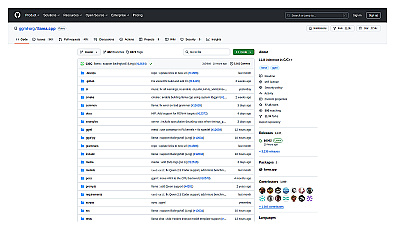
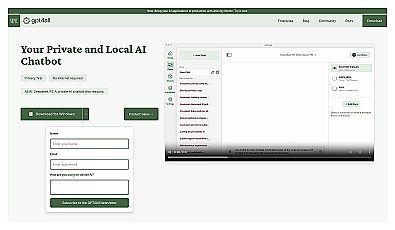
Ready to install one? Here are the three runners from this guide, plus Jan and GPT4All, two free desktop apps that also run models offline:

FAQ
Can I run an LLM locally without a GPU?
Yes. Ollama, LM Studio and llama.cpp all run on the CPU and system RAM. Small models of a few billion parameters are the practical choice; larger ones work but slowly, because system memory is much slower than VRAM.
What is the easiest way to run an LLM locally?
LM Studio if you want a desktop app with a model browser, Ollama if you are comfortable with one terminal command. Both are free.
Is a local LLM as good as ChatGPT or Claude?
Usually not for the hardest tasks. Small open-weight models handle drafting, summaries, classification and private notes well; the biggest hosted models still lead on complex reasoning and long coding work.
How much RAM do I need to run Llama or Gemma locally?
It depends on the size and quantization. An 8B model at Q4 needs about 7 GB of VRAM or unified memory with an 8K context. Use the VRAM tables or the calculator for other sizes.
Does Ollama send my prompts to the internet?
Not when you run local models. Its FAQ says it does not see your prompts or data in that case. Cloud model tags are different: they run on Ollama's servers.
Can I use a local model in my own app?
Yes. Point any OpenAI-compatible client at the local base URL, for example http://localhost:11434/v1/ for Ollama, and use the model name as shown by ollama ls.